SCAN CHANNELS: Find Wireless Activity
Use POOM SCAN CHANNELS to compare Wi-Fi and IEEE 802.15.4 packet activity before choosing a channel for deeper analysis.
 View full screen
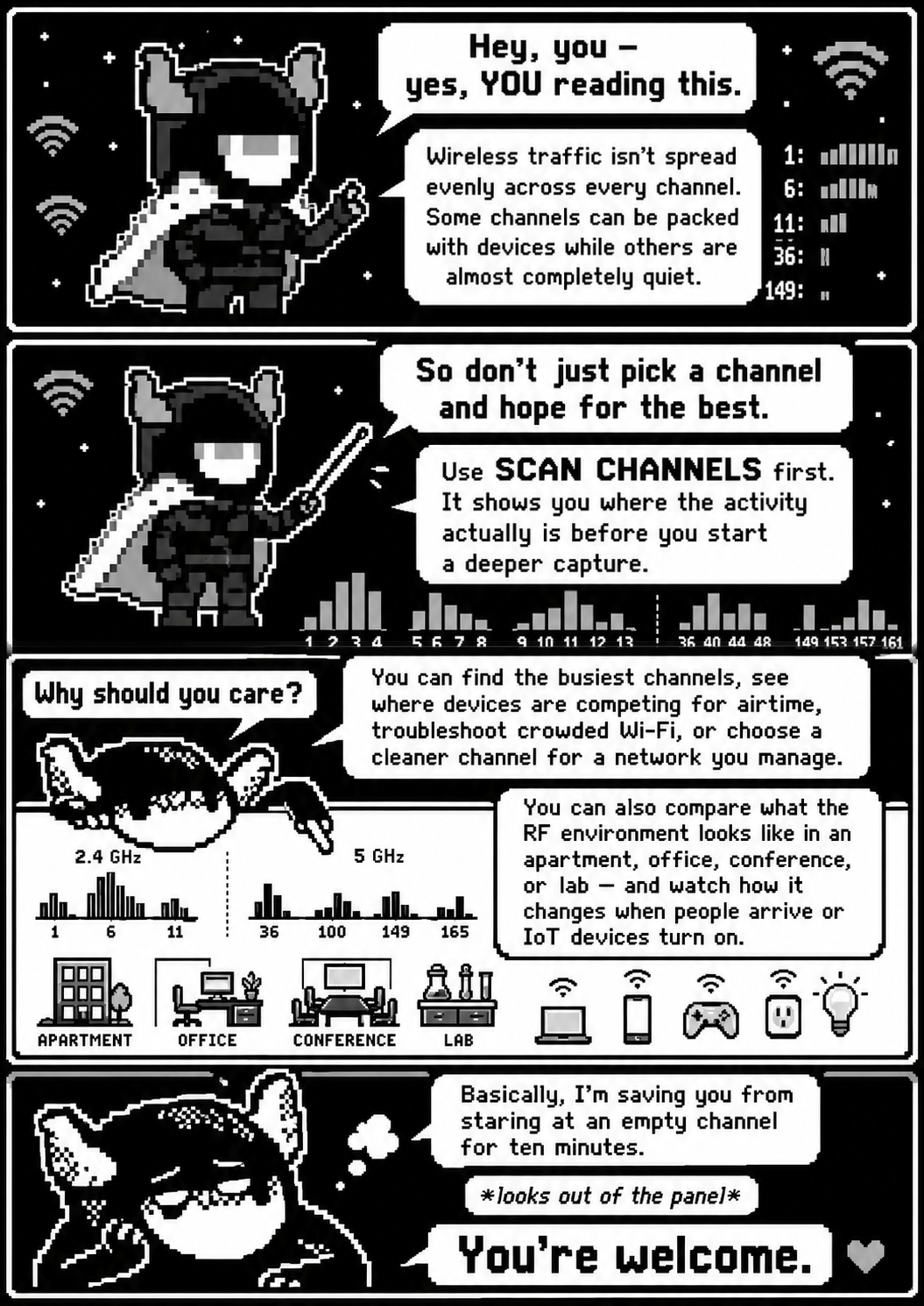
The comic explains that wireless traffic is not distributed evenly across every channel. POOM can scan first to locate busy channels, observe airtime competition, troubleshoot crowded Wi-Fi, choose a cleaner channel on a network you manage, and compare RF activity across places or times before beginning a deeper capture.
POOM lets you explore the radio environment through two different views:
- Wi-Fi — scans the Wi-Fi bands and channels enabled by the current firmware, band mode, and regulatory configuration.
- IEEE 802.15.4 — scans the 2.4 GHz channels used by technologies such as Zigbee and Thread.
Scanner procedure
- Open THE BEAST → SCAN CHANNELS.
- Use the navigation arrows to select Wi-Fi or IEEE 802.15.4.
- Press A to begin capturing and counting packets in real time.
- Let the same measurement window run each time you compare two locations or configurations.
The question to answer is: On which specific channels is POOM observing the most network activity?
Read the on-screen results
POOM sorts the results from the highest observed packet activity to the lowest. Each row displays:
- Channel number — the identifier for the scanned radio channel.
- Packet count — the total number of supported frames captured on that channel during the current measurement.
- Percentage — that channel's share of all packets counted in the current scan.
- Graph bar — a quick visual comparison of relative activity.
| Location / time | Radio | Top channel | Packets | Share | Notes |
|---|---|---|---|---|---|
| Room A / morning | Wi-Fi | Record | Record | Record | Nearby APs or traffic burst |
| Room A / morning | 802.15.4 | Record | Record | Record | Possible owned Zigbee/Thread activity |
Device controls
- UP / DOWN: move vertically through the detected-channel list.
- LEFT / RIGHT: move five rows at a time through the sorted channel list.
- A: reset all statistics to zero and begin a fresh measurement without leaving the tool.
- B: stop the current scan and return to the radio-selection menu.
Interpret the result carefully
Use identical scan duration and placement when comparing results. A brief burst can dominate a short scan, while distance, walls, antenna orientation, packet loss, radio coexistence, and channel dwell time can all change the ranking.
On ESP32-C5, 2.4 GHz and 5 GHz support depends on the configured band mode. Automatic band mode does not mean simultaneous dual-band operation. The available 5 GHz channel set also depends on the regulatory domain, DFS policy, firmware configuration, and channel width, so do not assume a fixed number of non-overlapping channels.
Next step: use the highest relevant channel as a starting point for a fixed-channel, authorized PCAP capture later in this lab, then compare whether the longer capture confirms the same pattern.
Technical reference: Espressif's ESP32-C5 Wi-Fi Driver guide documents band modes, channel configuration, bandwidth, regulatory behavior, and DFS scanning.