POOM Motion Plot and BLE Maze
Stream POOM accelerometer data over BLE UART, calibrate its orientation, plot motion, and control the interactive maze.
It can be useful for devices to understand both how they are moving and where they might be headed. Different sensors can help with that, but POOM already includes a 6-axis IMU: an accelerometer for movement and tilt, plus a gyroscope for rotation. In this lab, we use PLOT to make that invisible motion visible.
What it does: PLOT streams values out for real-time visualization. The BLE plot transport (poom_ble_plot) sends ASCII lines over a BLE notification characteristic, so a companion plotter on your computer can graph them as they arrive. Paired with the IMU stream (poom_imu_stream), you can watch motion data live.
Steps:
- On POOM, open THE MAKER → PLOT and press A. POOM starts advertising the live plot stream as a UART-capable BLE device.
- Open Bluefruit Connect. We use it here because PLOT sends its values through BLE UART-style notifications.
- In the device list, enable the UART filter if needed and look for
PPLOT. That is the POOM plot device. - Connect to
PPLOT, then open the UART/plot view so you can see the incoming values. - Move POOM and watch the numbers or graph change in real time.
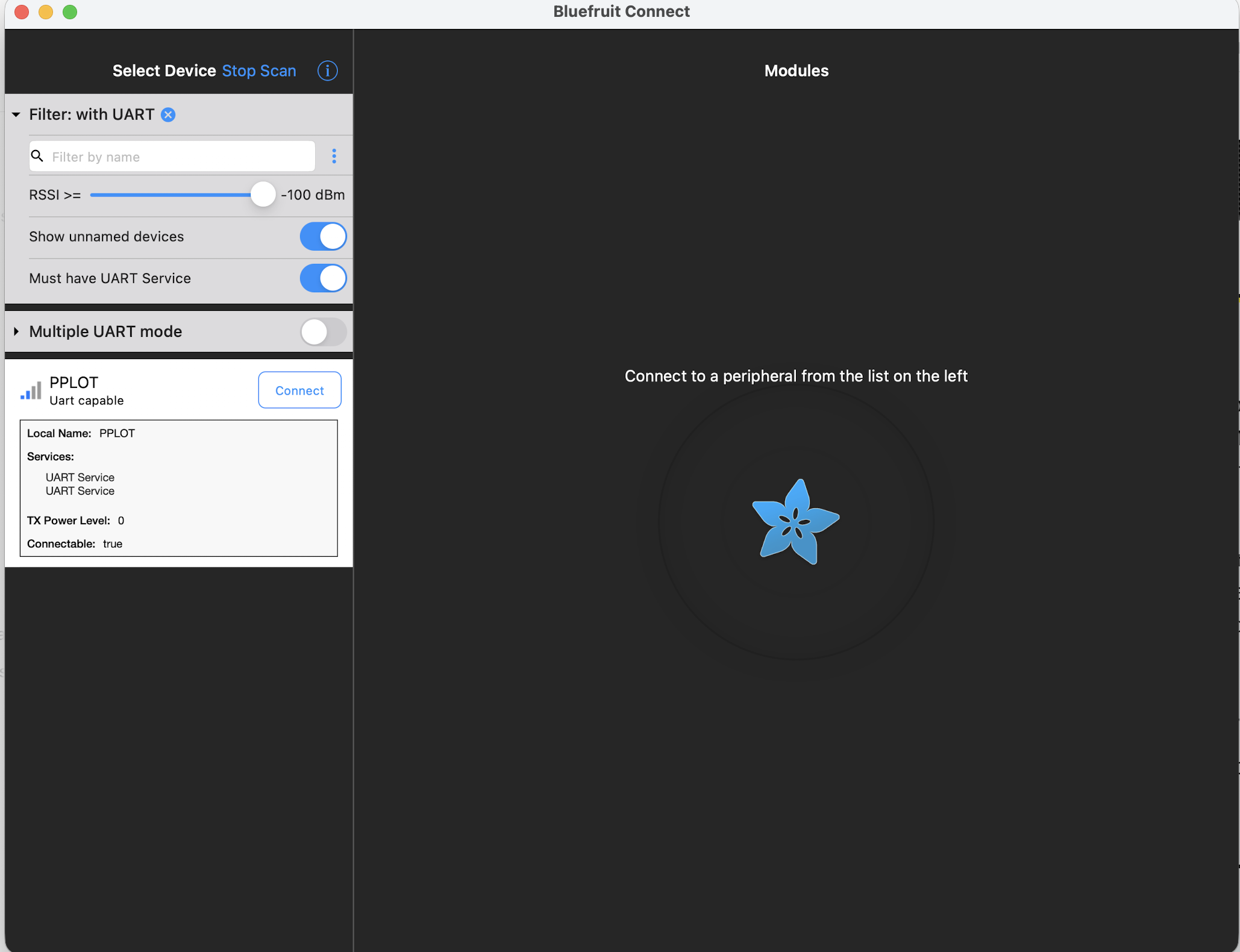
Observe: the line moves with the sensor. This is your feedback loop for tuning thresholds before committing them to firmware.
Try it — POOM Tilt Maze
Turn the live plot into a controller. The maze below connects directly to PPLOT through BLE UART notifications and converts the three ACC values (ax,ay,az) into a two-dimensional bubble-level plane for the moving Maker face.
- Use Chrome or Edge on a Bluetooth-capable computer and open this page over HTTPS.
- On POOM, open THE MAKER → PLOT and select ACC by pressing UP.
- If
PPLOTis connected in Bluefruit Connect, disconnect it there first. POOM's BLE UART can connect to only one client at a time. - Hold POOM in the position you will use to play—flat or with its screen upright—select Connect PPLOT below, and choose POOM in the browser's Bluetooth window.
- Keep that play position still while the maze averages three seconds of ACC readings and builds its two-dimensional control plane. Calibration starts automatically with the first sample; use Calibrate 3 sec whenever you change how you hold POOM.
- If movement feels rotated or reversed, open Controls & axis setup to swap or flip the axes.