POOM microSD & Filesystem
Manage POOM files, captures, logs, portals, and infrared remotes through POOM Web and the microSD card.
The microSD card is POOM's file library. Packet captures, logs, portal assets, and IR remotes all live there. You do not need to remove the card every time you want to manage a file: connect POOM through USB-C or join its Wi-Fi access point, open POOM Web, and let POOM act as the bridge to the card.
Step 1 — Prepare a card
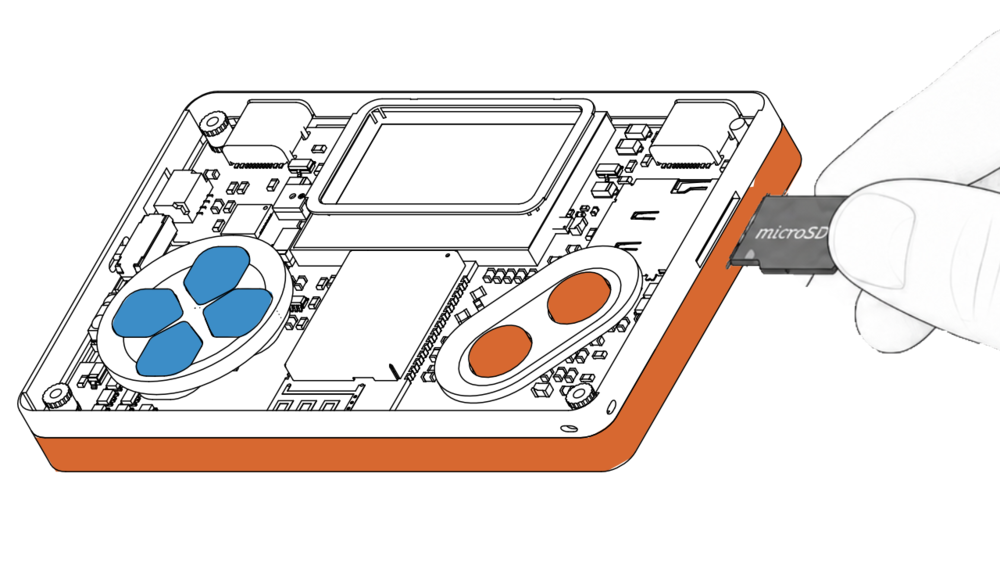
We know the microSD card can be a little difficult to insert. Use your fingernail or a small non-metallic, non-sharp object to press it gently into the slot until it clicks into place. Do not force the card or use a metal tool.
- Format the card as FAT32.
- Insert it before launching an SD-dependent app.
- Files are addressed under the mount point, e.g.
/sdcard/ir/tv.iror/sdcard/captures/lab.pcap.
Step 2 — Manage files without removing the card
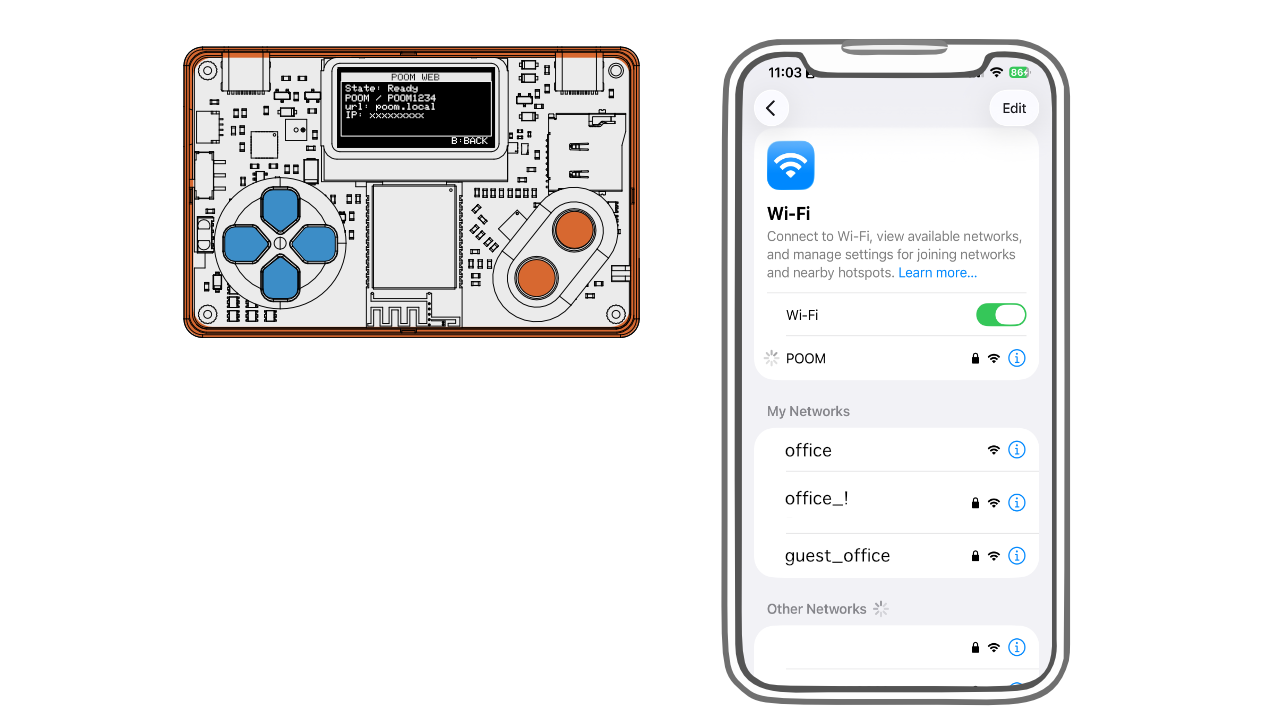
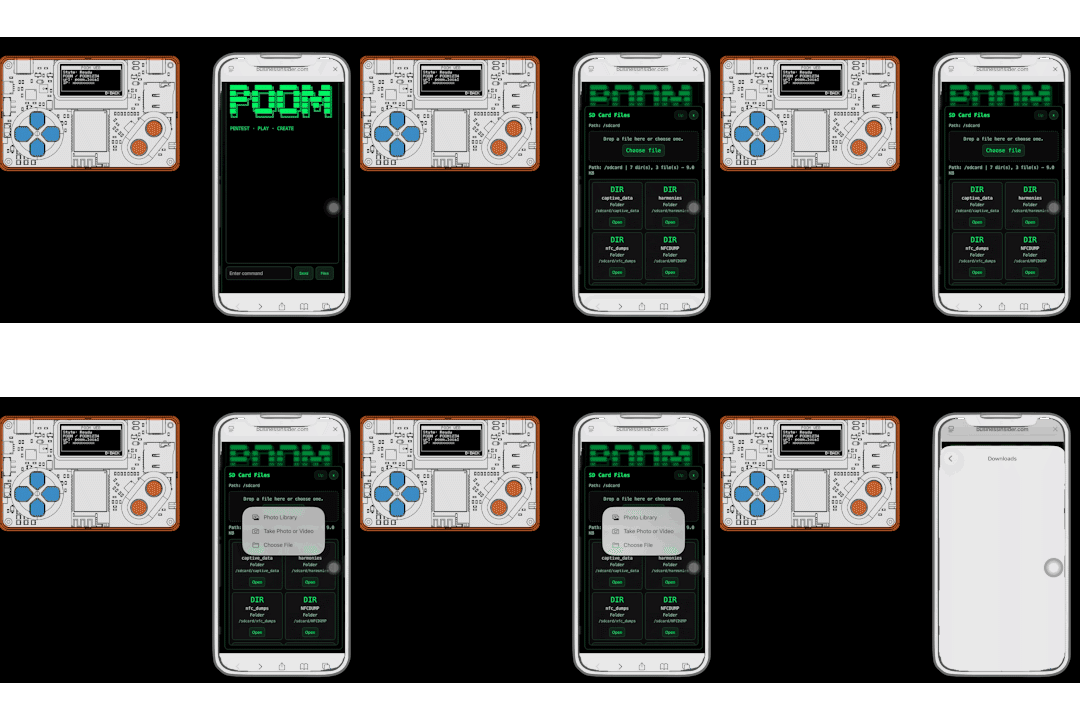
POOM Web includes a file manager for the microSD card. POOM stays between your browser and the card, so you can browse folders, upload and download files, create folders, rename items, and remove files without repeatedly ejecting the microSD card.
From the file manager you can organize captures, logs, portal assets, and IR remotes while the microSD card stays inside POOM.
Step 3 — Manage IR files and use the remote control
Saved infrared controls live in the /sdcard/ir/ folder. With POOM Web you can upload a new .ir file, download a backup, rename controls, organize them into folders, or delete profiles you no longer need.
- Connect through USB-C or join the POOM access point.
- Open POOM Web and go to the microSD file manager.
- Open
/sdcard/ir/and add or organize your IR remote files. - Open the POOM Web remote-control interface, choose a saved remote, and send its commands from your phone or computer.
This turns POOM into a portable IR library: the remote files remain on the card, while the browser becomes the control panel. Use it only with equipment you own or are authorized to control.
Step 4 — Handle the failure cases
| Symptom | Likely cause | Fix |
|---|---|---|
| POOM Web does not show the card | No card / not mounted | Reseat card; restart the file manager |
| Garbled files | Wrong format | Reformat as FAT32 |
| Upload fails partway | Card full or connection interrupted | Free space, reconnect, and upload again |
Step 5 — A folder layout that scales
The other labs all write to the card. Give each a home so nothing collides:
/sdcard/
  captures/    ← .pcap files (Beast, Zigbee)
  ir/          ← .ir files (Universal IR)
  logs/        ← .csv data logs (Data Logging)
  portals/     ← web portal assets
Safe removal
Don't pull the card mid-write. Return to the menu, stop active transfers or apps, or power down before ejecting to avoid FAT corruption.
Where to go next
Put the card to work logging sensor data in Data Logging & Live Plots, store learned remotes in the Universal IR Workshop, and review the storage map in the Hardware Reference.