Load Games and Apps from the SD Card
Load POOM games from a microSD card using Application BIN files, POOM Web in AP or STA mode, and GAMER GAME SLOT on firmware 1.0-r6.
POOM can load games and compatible applications directly from the microSD card. This workflow keeps the main POOM firmware installed: download an Application BIN, upload it to the card with POOM Web, and launch it from GAMER → GAME SLOT.
1. Prepare the microSD card
Insert a microSD card before opening an SD-based app. If POOM does not recognize the card, open Settings → SD. From there you can review the card information or format it directly on the device.
2. Download the Application BIN
- Open the POOM Games Flasher.
- Select the game you want.
- In the selected-game panel, choose Application BIN.
- Keep the downloaded
.binfile ready for the upload step.
/sdcard/apps. The Flash Game button uses a different merged image for direct USB flashing; do not copy that merged image into the apps folder.3. Let POOM create the apps folder
On POOM, open GAMER → GAME SLOT. The first time you open the SD application loader, POOM creates:
/sdcard/appsThis is the folder GAME SLOT scans for compatible application BINs.
4. Connect to POOM Web
POOM Web lets you manage the files on the card from a phone or computer. You can connect in either AP Mode or STA Mode.
AP Mode — connect directly to POOM
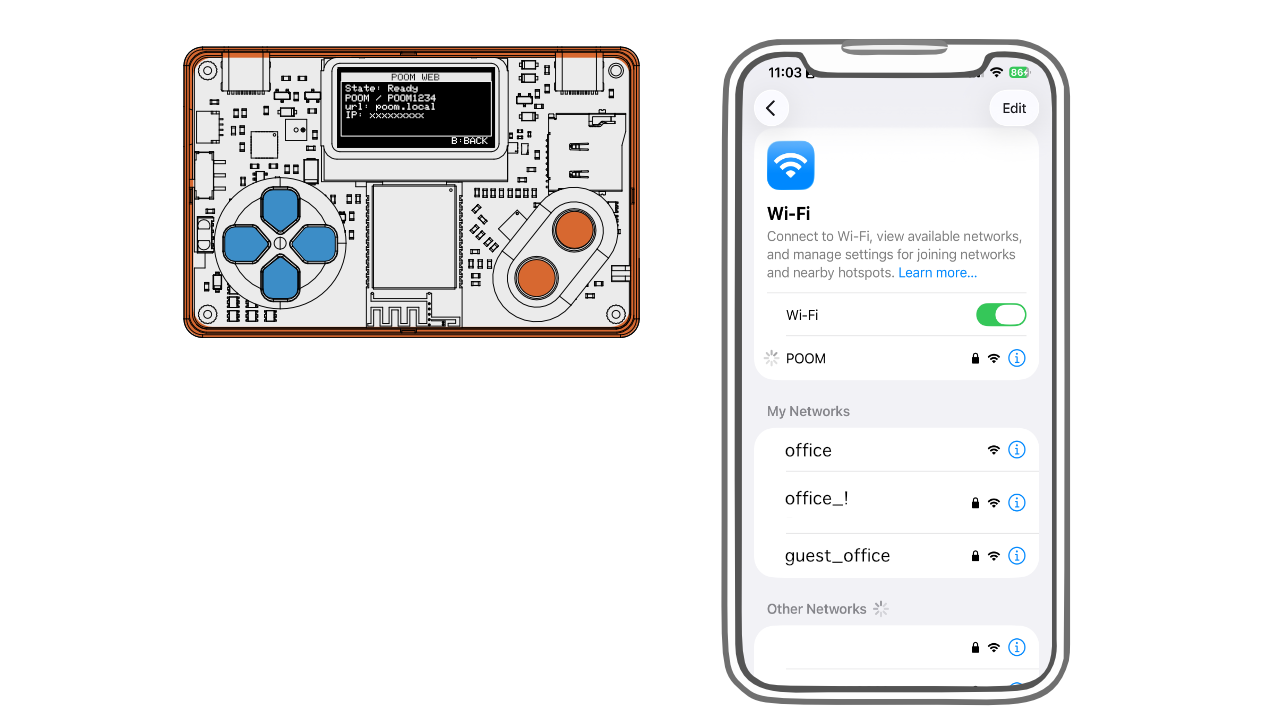
AP Mode is the simplest direct connection. POOM creates its own Wi-Fi network and shows the network name and browser address on its screen.
- Activate AP Mode on POOM.
- On your phone or computer, open the list of available Wi-Fi networks.
- Join the network name shown on POOM.
- Open a browser and enter the IP address shown on the POOM screen, for example
192.168.4.1.
STA Mode — keep using your normal Wi-Fi
STA Mode connects POOM to an existing Wi-Fi network. Configure that network from Settings, activate STA Mode, and wait for POOM to show its assigned IP address.
- Make sure your phone or computer is connected to the same Wi-Fi network as POOM.
- Enter the IP address shown on POOM in your browser, for example
192.168.1.120. - You can also try
poom.local. If it does not resolve, use the displayed IP address instead.
The .local address depends on operating-system and network support, so the IP shown by POOM is normally the most reliable option.
5. Upload the game with POOM Web
In POOM Web, open Files from the lower-right area of the interface. The file manager can upload, download, and organize the files on the microSD card.
- Open
/sdcard/apps. - Upload the Application BIN you downloaded from the Games Flasher.
- Wait for the transfer to finish before closing POOM Web or changing networks.
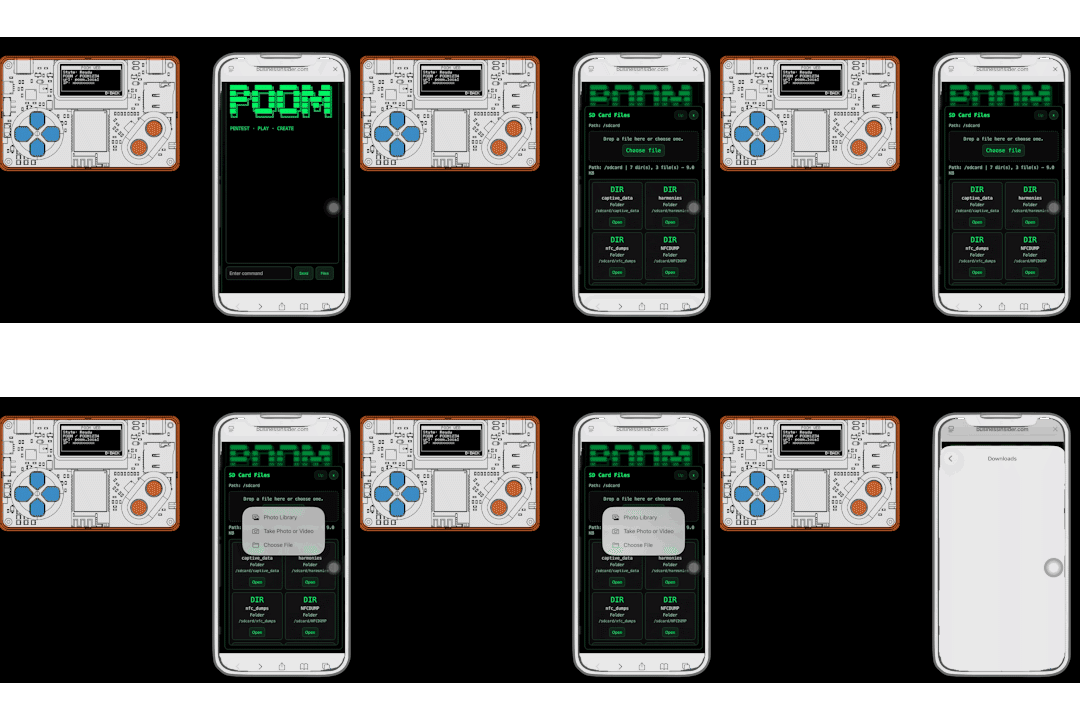
/sdcard/apps, and upload the downloaded Application BIN.6. Run the game
- Return to POOM and open GAMER → GAME SLOT.
- Select the game or app you uploaded.
- POOM loads it from the microSD card and starts it.
Troubleshooting
| Problem | What to check |
|---|---|
| POOM does not recognize the card | Open Settings → SD, review the card information, and format it after backing up important files. |
| POOM Web does not open | Confirm the displayed IP, the selected AP/STA mode, and that both devices are on the expected Wi-Fi network. |
| The game does not appear in GAME SLOT | Confirm the file is an Application BIN inside /sdcard/apps, then reopen GAME SLOT. |
| The game does not start | Download the Application BIN again, re-upload it completely, and verify that POOM is running firmware 1.0-r6 or later. |
If the card still is not detected after formatting and reinserting it, contact POOM support by email with the card details and the behavior shown on the device.