Universal IR Workshop with POOM
Learn, save, organize, and transmit infrared remote-control signals with POOM and the POOM Web file manager.
POOM IR — The Story
The other day, I was sitting at home looking at all the devices around me and thought: “It is exhausting that everything has its own remote.”
The television, air conditioner, and fan all had a different controller. Then I had an idea: “What if I could control everything from my phone and use a single device to transmit the IR signals?”
And, of course, I had POOM.
Phone → POOM → Infrared → Device
I did not want to build one app for iOS and another for Android, and I did not want to force anyone to install anything. It made more sense for everything to work directly from the browser.
That is why POOM can host an embedded web interface. From Web CLI, you can upload IR files and keep different remote controls available from your phone. Today you can control a television, tomorrow an air conditioner, and later add more equipment.
Curiously, infrared was not part of POOM's original idea. But IR is still present in many devices around the home, so it became an incredibly useful feature for experimentation.
There is something I love about this lab: we live surrounded by signals we cannot see—Wi-Fi, Bluetooth, NFC, radio, and infrared. An entire invisible world exists alongside us.
POOM simply gives us an excuse to start playing with it.
POOM has both an IR receiver and an IR transmitter, which means it can learn a button from any remote and replay it. This lab turns that into a universal remote: capture the buttons you use, store them as files, and drive several devices from one menu.
ir_rcv + IR TX) is listed in the Hardware Reference.
How IR remotes work
A remote blinks an infrared LED in a timed pattern on a carrier frequency (usually ~38 kHz). Different manufacturers use different protocols to encode which button was pressed:
| Protocol | Common on |
|---|---|
| NEC | Many TVs, fans, LED strips |
| RC5 / RC6 | Philips and others |
| Sony SIRC | Sony equipment |
Step 1 — Learn a button
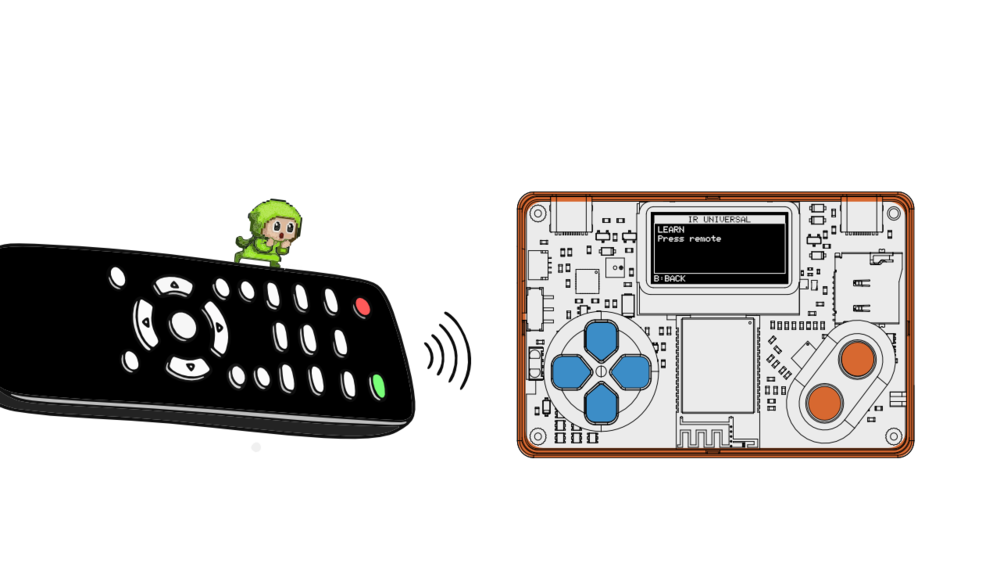
Point your remote at POOM's IR receiver and press a button. POOM captures the timing and, when it recognizes the protocol, the decoded value. Label it (e.g. tv_power) and save it.
Step 2 — Transmit it back
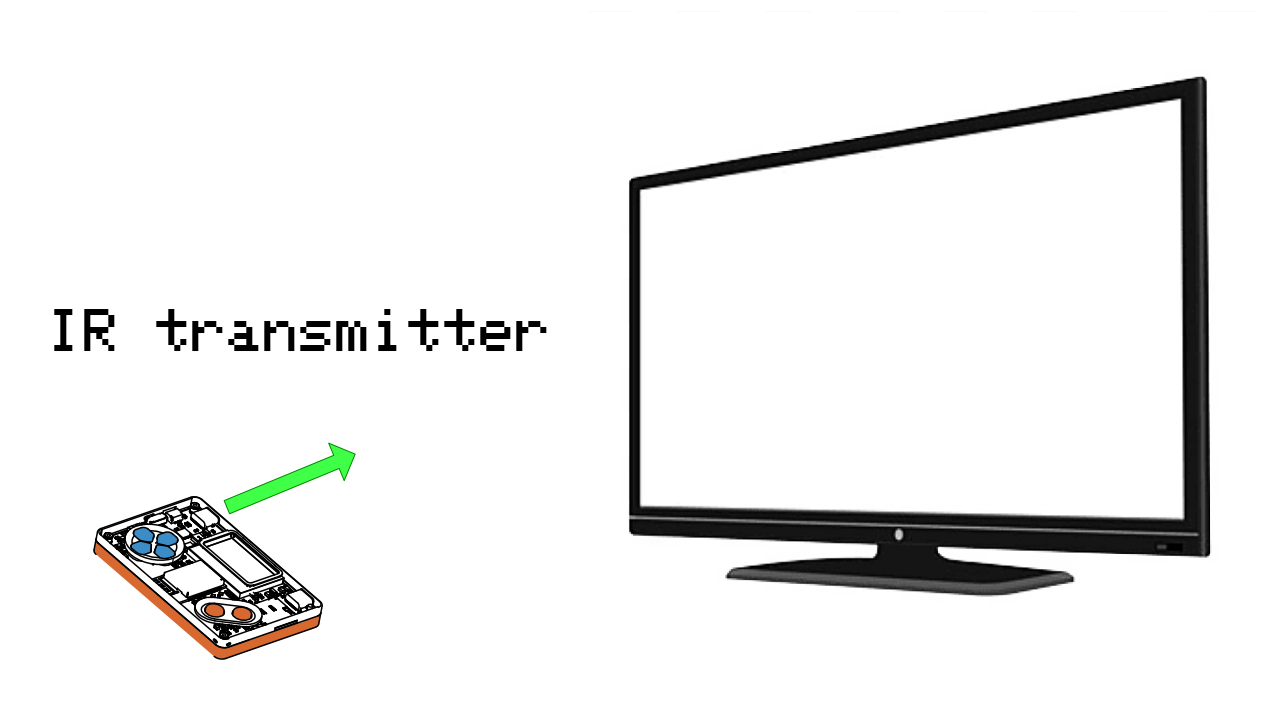
Aim POOM's IR transmitter toward the TV or device you want to control, then replay the stored code. The transmitter side should face the device's IR receiver. If the device responds, the capture is good. Line-of-sight and distance matter — IR won't go through walls.
Step 3 — Work with .ir files
POOM can load Flipper-compatible .ir files, so a huge community library of existing remotes is available. Keep them organized by device on the card:
/sdcard/ir/
  livingroom_tv.ir
  bedroom_fan.ir
soundbar.ir.ir format POOM parses (raw vs. parsed) is being verified.Step 4 — Build a multi-device remote
Combine your saved buttons into a menu: pick a device, then a button. That's a universal remote. Draw the menu with the techniques in OLED Graphics & Animation.
.ir files stored on the microSD card, and choose one to open its controls. Press a button in the browser and POOM sends the infrared command to the device—your phone or laptop becomes the remote interface.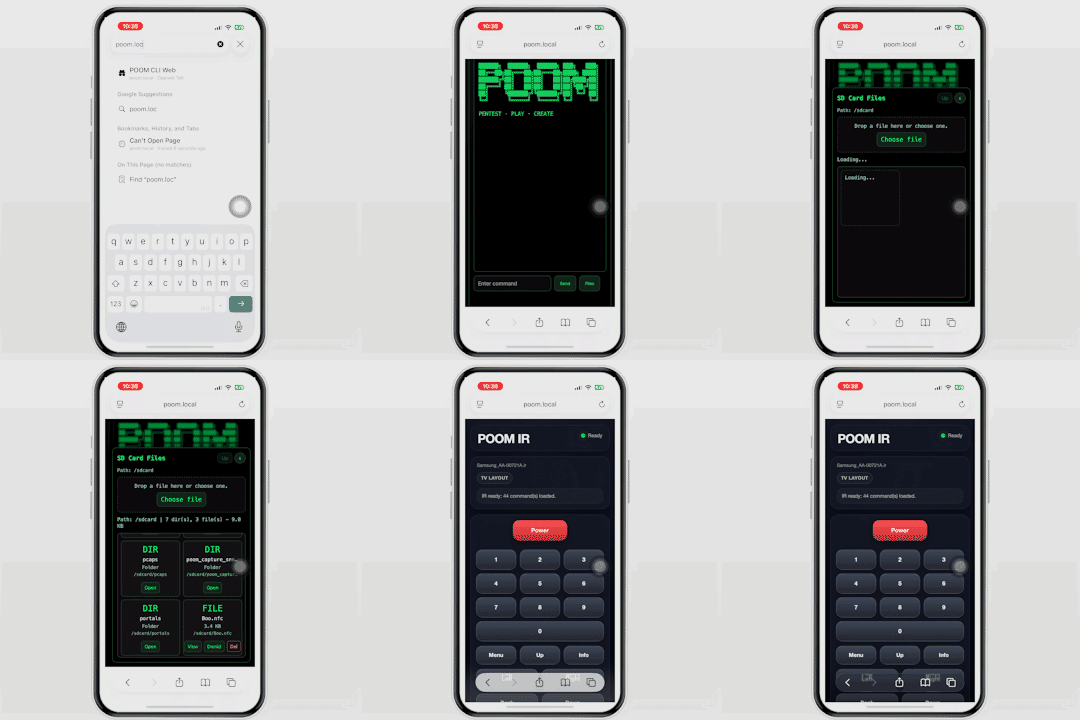
Responsible use
Only control devices you own or are permitted to operate. IR “TV-off” pranks in public spaces can be disruptive and, depending on where you are, unwelcome.
Where to go next
Revisit the IR basics in THE ZEN Lab, store files well via microSD & Filesystem, and design a cleaner remote interface with the OLED lessons inside THE GAMER.