NFC Type A: REQA and ATQA
Use the POOM NFC CLI to start the reader, select NFC-A, send REQA, and understand the first ATQA response from a tag.
Continuing our journey through wireless communication, we are now going into another technology we use constantly without thinking too much about what is happening behind it: NFC.
There are many communications we cannot see. We tap a card, sticker, tag, or key fob, pay for something, open a door, and simply expect it to work.
We have normalized it so much that we rarely ask:
What just happened between the reader and the tag?
That is exactly what these labs are for: understanding what is happening.
NFC is a broad topic, so we are not going to learn everything at once. We will split it into small actions and experiment with each one using POOM.
And since every beginning needs a Hello World, we will start with the simplest question:
Is there an NFC tag here?
For these labs, I recommend getting a simple NFC tag, card, sticker, or key fob. If you have several different tags, even better, because later we will be able to compare how each one responds.
How does NFC communication begin?
In these labs, we have two main characters:
- POOM, which works as the NFC reader.
- The NFC tag, which could be a card, sticker, key fob, or another compatible NFC object.
POOM generates a 13.56 MHz field.
A passive NFC tag can get energy from that field, wake up its chip, and respond without needing a battery.
In simple terms:
- POOM generates the NFC field.
- We bring the tag close.
- The tag receives energy.
- POOM can send commands.
- The tag can respond.
The first conversation we are going to study is:
REQA → "Is there a tag?"

ATQA → "Yes, I am here."
This is where our first lab begins.
Lab 1 - Intro to NFC: REQA and ATQA
This will be our NFC Hello World.
We do not want to read memory, know the UID, or authenticate yet.
We only want to answer:
Can POOM see the tag?
Goal
Understand:
- what
REQAis; - what receiving
ATQAmeans; - how an NFC Type A communication begins;
- why detecting a card does not mean it has been selected yet.
REQA - the first question
REQA means:
Request Command Type AIts value is:
0x26It is one of the first commands a reader uses to look for ISO/IEC 14443 Type A cards.
You can imagine it as:
"Is there any Type A card available?"
When POOM runs REQA, it really sends the value:
26in hexadecimal.
That is why later we will see output like:
[TX] REQA (26)Here:
TXmeans Transmit.
In other words:
POOM is transmitting the
REQAcommand, whose value is0x26.
ATQA - the answer
If a Type A card is inside the field and can respond, it returns:
ATQAATQA means:
Answer To Request, Type AFor example:
ATQA = 04 00For this first lab, you can interpret it simply as:
"Yes, there is a Type A card here."
One important detail:
ATQA != UIDThe UID will appear later.
For now, ATQA only matters as one of the first responses that confirms a card exists.
What about WUPA?
There is also:
WUPA = 0x52WUPA means:
Wake-Up Command Type AIt is related to waking cards that are in certain states, such as HALT.
For now, just remember:
REQA != WUPAWe will not use WUPA yet.
We will return to it when we study card states, where its purpose will be much easier to understand.
Let's go to the lab
- On POOM, open THE BEAST from the main menu, then select CLI.
- Place POOM on top of an NFC Type A tag. The NFC antenna is on the back of POOM, so the tag should sit underneath the device, close to the back side.
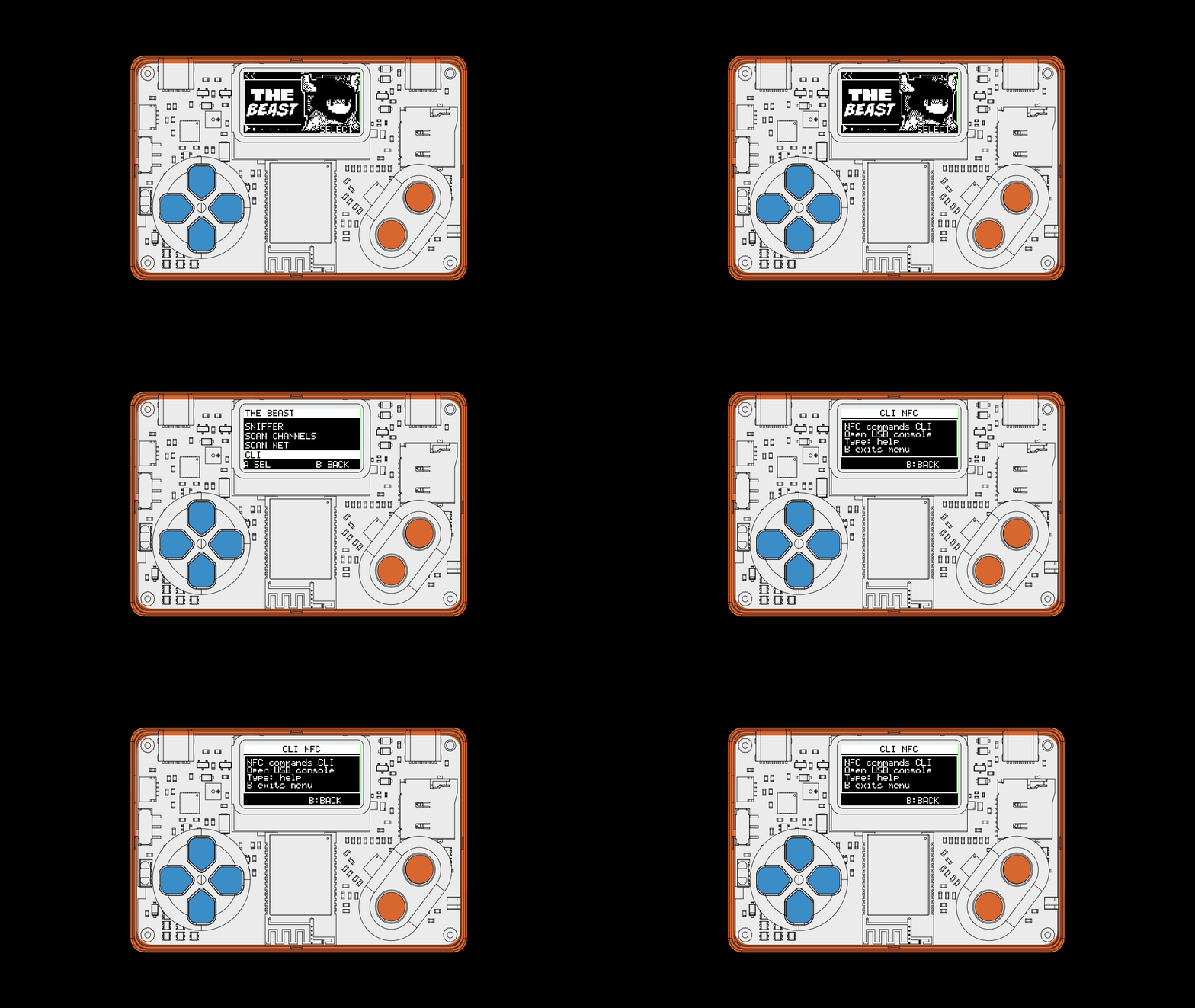
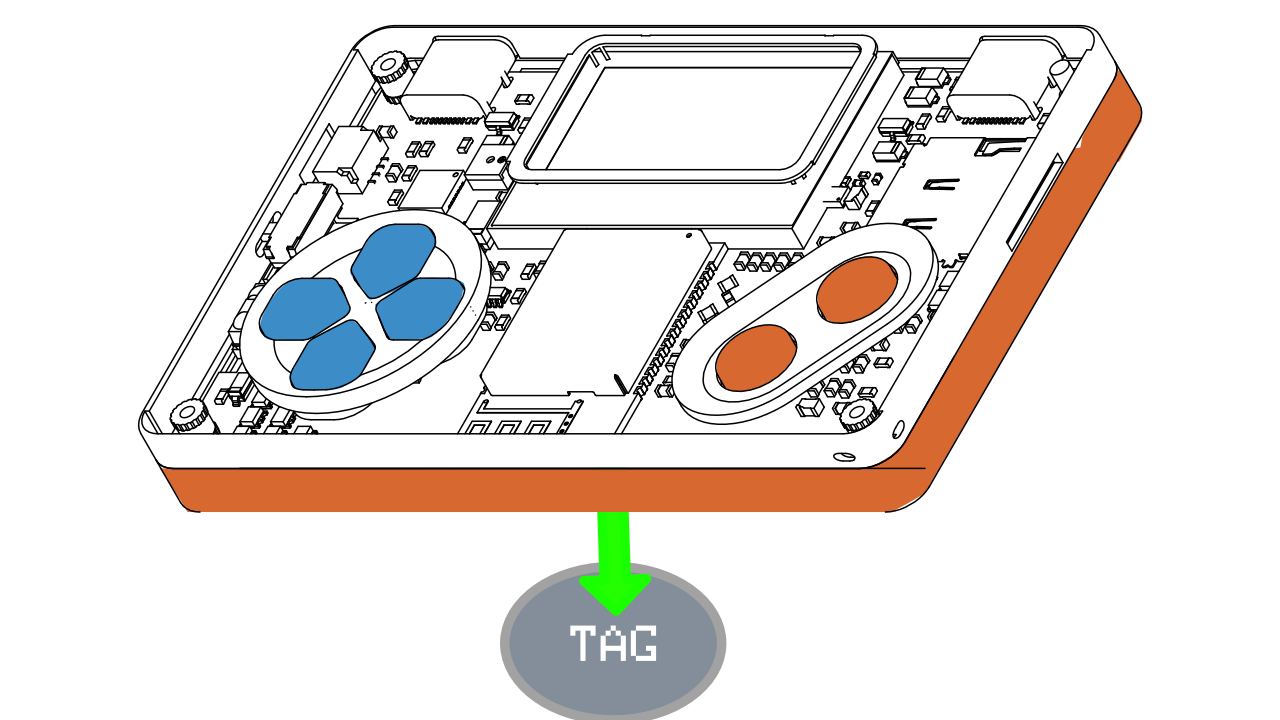
Use the embedded NFC CLI below to connect to POOM, then run these commands in order.
First, start NFC:
nfc-core-startSelect NFC Type A technology:
nfc-tech-set-aNow send REQA:
nfc-reqa-sendThe full sequence is:
nfc-core-start
nfc-tech-set-a
nfc-reqa-send
What did we just do?
The command:
nfc-core-startstarts POOM's NFC system.
Then:
nfc-tech-set-atells POOM we are going to work with:
ISO/IEC 14443 Type AFinally:
nfc-reqa-sendasks POOM to send:
REQA = 0x26In other words:
"Is there any Type A card available?"
Example output
You may get something similar to:
[TX] REQA (26)
[RX] ATQA: 04 00
Now we can read it correctly.
First line
[TX] REQA (26)It means:
TX: POOM is transmitting;REQA: the command name;26: the hexadecimal value of the command.
In simple language:
POOM asked whether a Type A card exists.
Second line
[RX] ATQA: 04 00Here:
RXmeans Receive.
In other words:
POOM received a response from the card.
The received value was:
ATQA = 04 00For this lab, that is enough to say:
there is a Type A card responding.
Quick test
Without moving the card, run this several times:
nfc-reqa-sendWatch whether you always receive:
ATQAThen move the card slightly and repeat.
Try:
- closer;
- farther away;
- centered;
- toward an edge;
- rotated.
This helps you understand from the beginning that NFC does not depend only on software.
It also depends on:
- the antenna;
- the RF field;
- the distance;
- the card position.
What does TIMEOUT mean?
You may see:
TIMEOUTThat simply means:
POOM sent
REQA, waited for a response, and did not receive a valid response within the expected time.
It can happen because:
- there is no card;
- the card is too far away;
- the card is positioned poorly;
- the RF coupling is weak;
- the card does not match the selected technology.
It does not automatically mean there is a hardware problem.
What you should learn
By the end of this first lab, you should be able to look at:
[TX] REQA (26)
[RX] ATQA: 04 00
and understand:
REQA → "Is there a Type A card?"

ATQA → "Yes, I am here."
You should also remember:
ATQA != UIDFor now, we do not need anything else.
Our goal was to check:
Can POOM see the tag?
If you get ATQA, the answer is yes.
What comes next?
Now we know a card exists.
The natural next question is:
Which card is it, and how do I select it?
That is where we will see:
Anticollision → UID → SELECT → SAKThat belongs to: